


Rich Text Component
This guide explains how to integrate and use the open-source rich text component wangeditor that has been wrapped in FormCreate. Through this guide, you'll learn how to install, configure, generate, and use rich text components in different business scenarios.
Note
When customizing rich text functionality, configure it through the config and init parameters. For specific parameters, refer to the rich text component's official documentation. The internal version used is 4.x.
Example
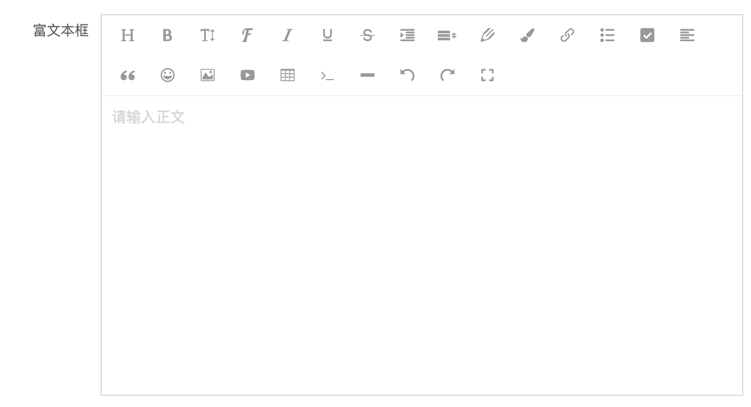
The following image shows an example of a simple rich text editor:
Installation
You can install the rich text component in the following ways:
Node Environment
npm install @form-create/component-wangeditor^3Browser Environment
<script src="https://cdn.jsdelivr.net/npm/@form-create/component-wangeditor@^3/dist/index.js"></script>Import and Mount Component
Node Environment
import FcEditor from "@form-create/component-wangeditor";
app.component('fcEditor', FcEditor);
// Or local mounting
formCreate.component('fcEditor', FcEditor);
Browser Environment
var FcEditor = window.FcEditor;
formCreate.component('fcEditor', FcEditor);
Generating Rich Text Component
Using rich text components in forms is simple. The following is an example of generating a rich text component:
 {
    type: 'fcEditor',
    field: 'editor',
    title: 'Rich Text Editor',
    value: '<b>@form-create/component-wangeditor</b>',
    props: {
      init(editor) {
          // Callback during initialization
          console.log('Editor initialized', editor);
      },
      config: {
          placeholder: 'Enter content...',
              height: 300
      },
      disabled: false
    }
}
Configuration
| Property | Type | Description |
|---|---|---|
| v-model | string | Rich text content |
| init | Function | Initialize wangEditor |
| config | object | Set wangEditor component's config |
| disabled | boolean | Disable rich text component |
Custom Configuration and Plugin Extension
Rich text components support highly customizable configuration and plugin extensions. Customize toolbars, format options, etc. through the config property:
const rule = {
    type: 'fcEditor',
    field: 'customEditor',
    title: 'Custom Rich Text Editor',
    props: {
      config: {
        menus: ['head', 'bold', 'italic', 'underline', 'link', 'list', 'image'],
        uploadImgServer: '/api/uploadImage'
      }
    }
}
In this example, we customized the rich text editor's toolbar and set the image upload server.